Explain it once
Walk a client through a design, explain a spreadsheet or demonstrate a feature. Your screen supplies the detail while your camera adds context.
Online screen and camera recorder
Record your screen and webcam together, with your voice explaining every step. Turn a product demo, presentation or walkthrough into a video saved on your device. Free, with no signup or installation.
Record screen & cameraFree to use. No account. No installation.
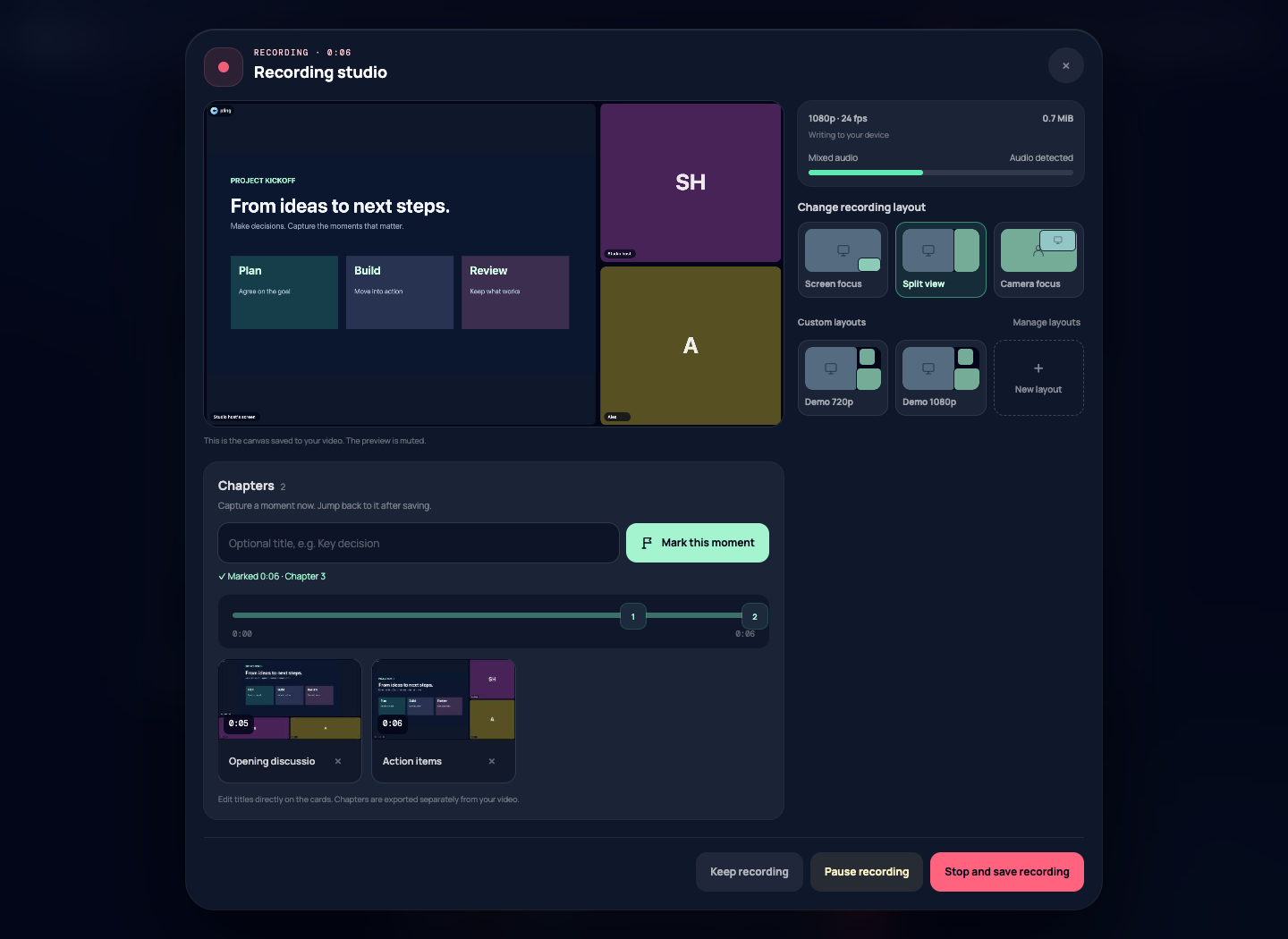
From setup to saved video
A Pling room can be a recording space for just you. There is no need to invite anyone to make a narrated screen recording.
Enter your name and start a room. Allow camera and microphone access in the browser, then check the preview before joining.
Use the screen-sharing control to choose a browser tab, application window or display. Keep your webcam on if you want to appear in the recording. Available sharing sources depend on your browser and device.
Open recording setup, choose 720p or 1080p and confirm consent. In the recording studio, preview the canvas and choose screen focus, split view or camera focus. You can switch layouts during the take.
Pause for interruptions and mark chapters for important steps. Stop recording and save the WebM on your device. Chapter timestamps can be exported separately to help you edit or navigate the video.
Record screen & camera
This opens a Pling room. Check your devices, then start recording from the room controls when you are ready.
Made for the way you work
Walk a client through a design, explain a spreadsheet or demonstrate a feature. Your screen supplies the detail while your camera adds context.
Use screen focus for small interface details and camera focus for an introduction. Preview layout changes as you record instead of guessing what will appear in the file.
The recording is saved locally rather than uploaded to Pling. Keep a backup, open it in a WebM-compatible editor or upload it yourself to your preferred video service.
Yes. In a Pling room, turn on your camera and share your screen before starting the recorder. The saved video combines the selected camera and screen layout with call audio.
No. Pling runs in your browser without signup or an installed extension. You will need to grant permission for the camera, microphone and screen sources you want to capture.
Yes. Start a room alone to record a tutorial, presentation or narrated demo. Inviting other people is optional.
The recorder mixes participant microphone audio. Do not rely on it to capture audio played by another application or browser tab; test your intended sources before recording.
Pling saves a WebM file. It does not currently provide an MP4 export or a hosted sharing link. If your publishing workflow requires MP4, convert the saved file with a compatible video tool.
Read more about room data and recording in our privacy policy.
Host and record an online class with your camera, slides and students in a Pling room. Free for up to 8 people, no signup. Save the lesson on your device.
Video interviewsRecord a remote video interview in your browser. Invite guests with a link, switch recording layouts and save a combined WebM locally. No signup or installation.