A room for small-group teaching
Run a language lesson, tutoring session or practical workshop with up to eight people including you. Screen sharing, chat, shared notes and polls keep the lesson together.
Record online classes in a Pling room
Record an online class with your camera, shared slides and the conversation in one video. Invite a small group with a link, or record a lesson alone. No accounts for you or your students.
Start a lesson recordingFree to use. No account. No installation.
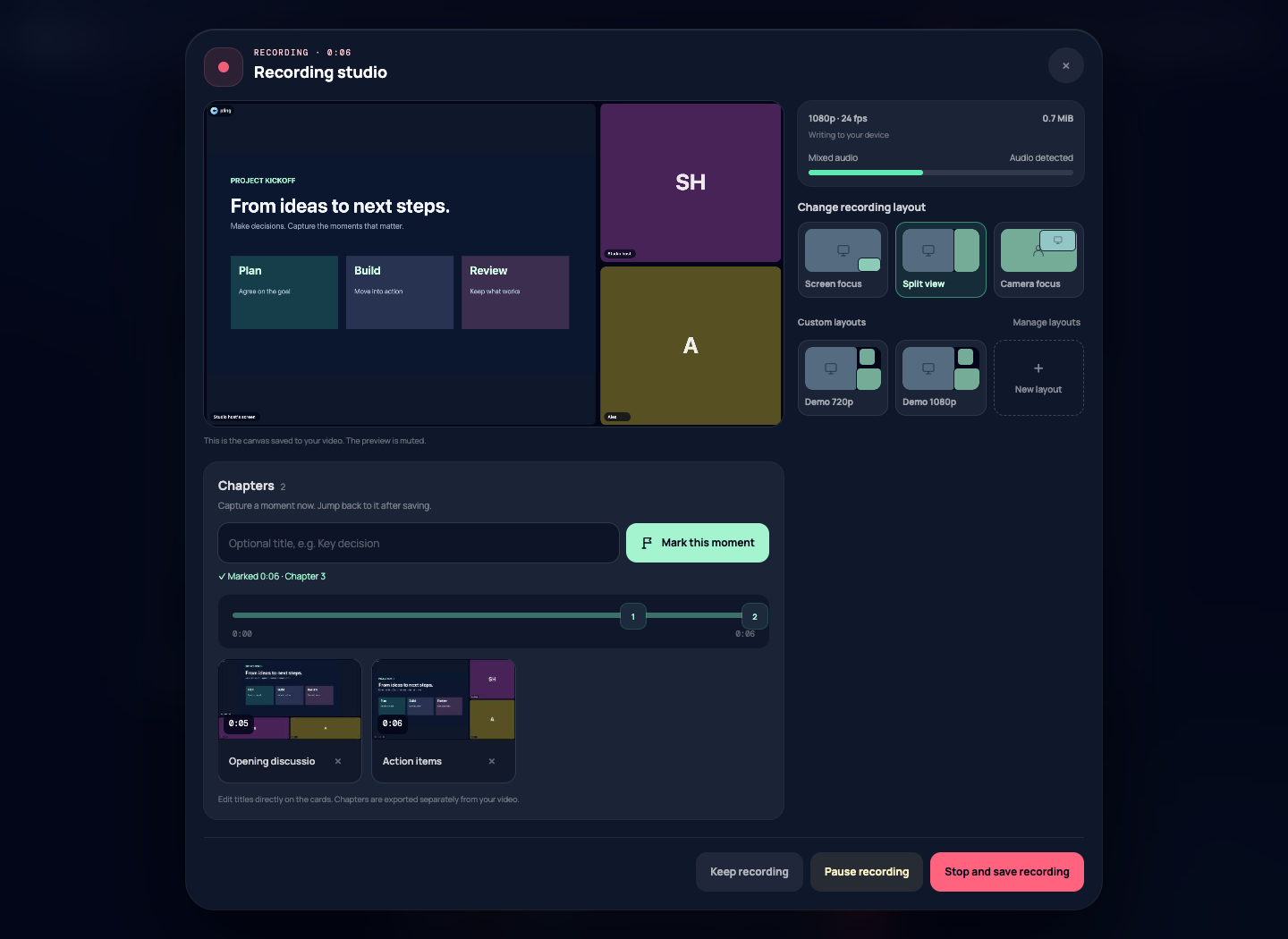
From setup to saved video
Host the lesson in Pling to use its built-in recorder. You can teach live to up to seven guests or prepare a recorded explanation on your own.
Enter your name and start a recording room. Send the room link to students if you are teaching live. They can join in their browser without registering.
Check your camera and microphone, then share the slides, document or application you will explain. Use the room agenda for the lesson outline and chat for useful links.
Agree with participants before recording, confirm consent in the recording controls and choose your output resolution. Everyone in the room sees the recording indicator. Use screen focus when students need to read your material.
Add chapter markers as you move between topics. Pause recording during a break, then resume. Save the finished WebM and export the chapter timestamps. Share your copy with students through a service you choose.
Start a lesson recording
This opens a Pling room. Check your devices, then start recording from the room controls when you are ready.
Made for the way you work
Run a language lesson, tutoring session or practical workshop with up to eight people including you. Screen sharing, chat, shared notes and polls keep the lesson together.
Switch between slides and camera-focused layouts while recording. Pause for a break without adding that paused time to the saved lesson.
Name chapter markers after topics or exercises and export their timestamps. Students can use these alongside the video; you can also export a portable HTML chapter player to keep with the WebM.
Yes. Local recording is included free for classes hosted in a Pling room. No subscription or account is required, and Pling does not impose a meeting timer. Device storage and performance still limit what you can record.
A room supports eight people total, so one teacher can invite up to seven students. Pling is intended for small groups rather than large lectures or webinars.
Yes. Open a room alone, share your teaching material and record your camera, microphone and screen. Save the lesson locally when you finish.
Pling’s built-in recorder captures a Pling room. It does not join or automatically record classes hosted on other meeting platforms. Invite your students to a Pling room to use this workflow.
The recording is saved on the recording participant’s device as a WebM. It is not automatically sent to students or hosted by Pling. Share the file or upload it to your own learning platform or storage service.
Read more about room data and recording in our privacy policy.
Record your screen, webcam and microphone together in your browser. Make tutorials and walkthroughs with free local WebM recording. No signup or installation.
Video interviewsRecord a remote video interview in your browser. Invite guests with a link, switch recording layouts and save a combined WebM locally. No signup or installation.